
Innova 3210RS: How to find Freeze Frame
Introduction
Freeze Frame is a snapshot of the OBD2 parameter values at the time that your vehicle detects a malfunction or error occurring in your vehicle due to an upcoming DTC code.
The article about Diagnostic Trouble Codes will help you learn and understand DTC codes better.
Step 1 - Select Check Engine.
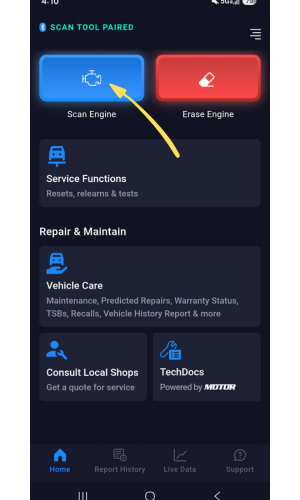
- After pairing to the RS2 App, select Check Engine. This feature scans all codes related to your engine, and the check engine light on your dashboard.
Step 2 - Wait until the RS2 app reads the data from your vehicle.
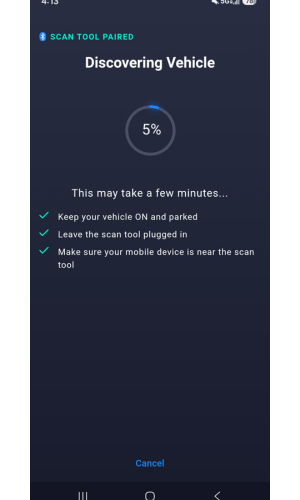
- The RS2 app will read data from your vehicle, including the odometer.
Step 3 - Select Generate Report.

- After your vehicle's odometer is read by the RS2 app, select Generate Report.
-
While generating the report for your check engine light, ensure your vehicle is turned to the ON position and your smart device is close to your dongle.
Once the report is generated, a Done message will be shown on the screen.
Note: Your vehicle’s odometer mileage should automatically be recorded in the Odometer field.
Step 4 - Select Freeze Frame.
|
|
|
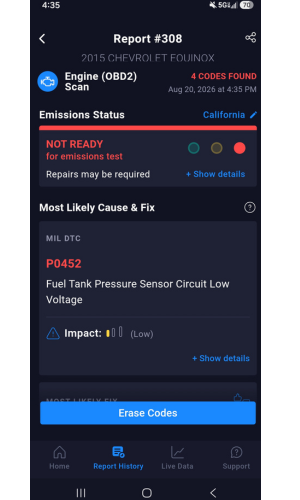
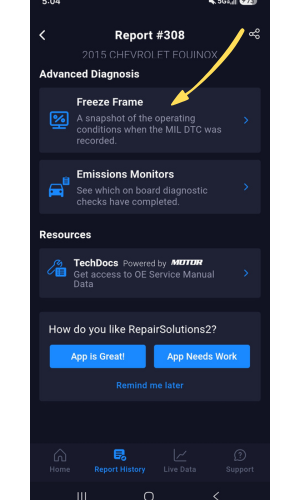
- After the RS2 app finishes generating your report, the Report Page will appear showing the number of codes found for your scan.
- Scroll down the results page, then select Freeze Frame.
Step 5 - View Freeze Frame data.
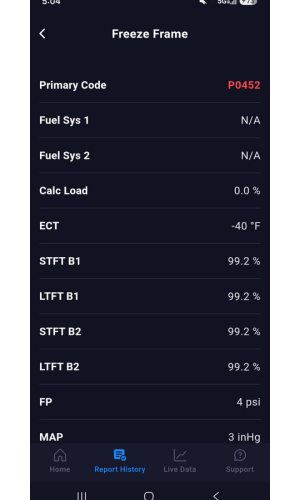
- After selecting the Freeze Frame button, you can now access a report of your vehicle's Freeze Frame Data at the time of your vehicle malfunction.