
Innova 3210RS: How to find your Check Engine Report
Step 1 - Select Scan Engine.
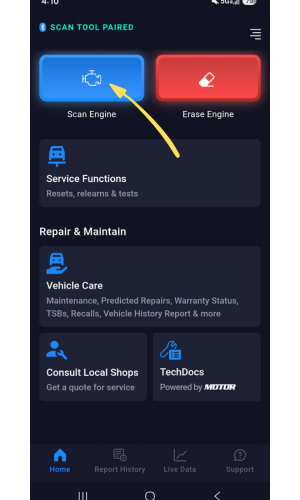
- After pairing with the RS2 app, select the Scan Engine option.
Step 2 - Wait until the RS2 app reads the data from your vehicle.
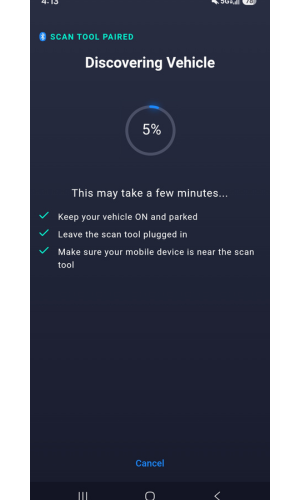
- The RS2 app will the read data from your vehicle, including the odometer.
Step 3 - Select Generate Report.

- After your vehicle's odometer is read by the RS2 app, select Generate Report.
-
While generating the report, ensure your vehicle is turned to the ON position, and your smart device is close to your dongle.
Once the report is generated, a Done message will be shown on the screen.
Note: Your vehicle’s odometer mileage should automatically be recorded in the Odometer field.
Step 4 - Viewing the Report page.
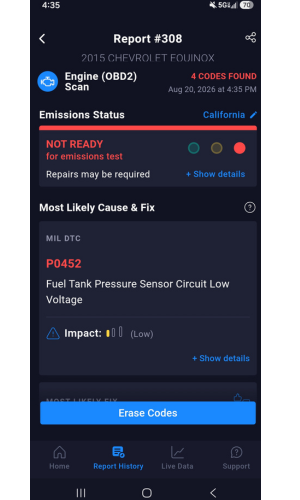
- Once you complete the scan, you've already generated a report which contains the DTC codes related to all issues associated with your check engine light.
Step 5 - Select Show Details to view more details.
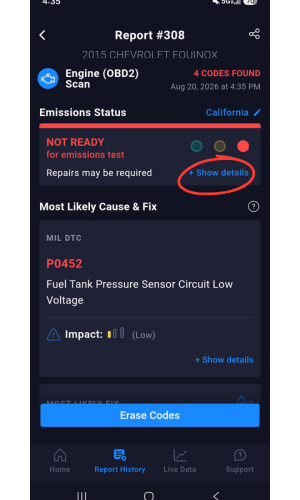
-
The RS2 app will automatically navigate you toward the check engine light report.
Scroll down to check all primary codes, stored codes, pending codes, and permanent codes related to the check engine light.
For more information on the primary code, select Show Details to view more information.
Step 6 - View details for Check Engine Codes & Replacement Parts.
|
|
|
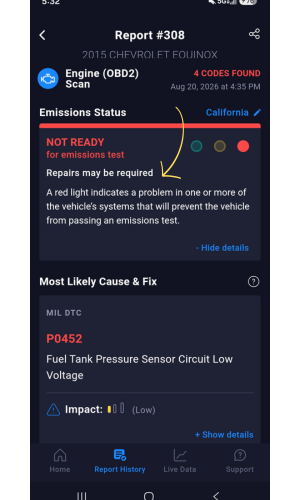
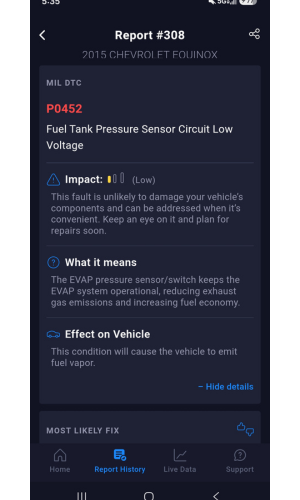
- After selecting Show Details, the RS2 app will display the severity, definition, and effect on your vehicle the primary code has.
- Select Hide Details if you wish to no longer view all the details.
|
|
|
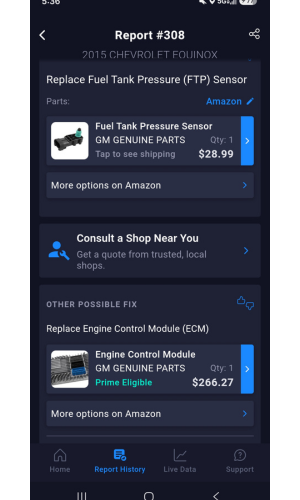
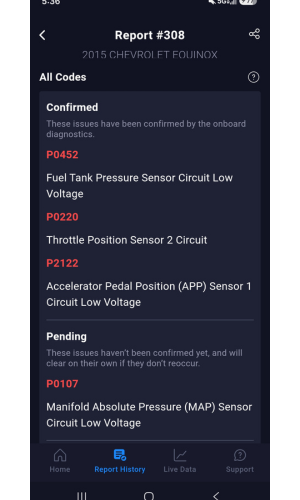
- You can view the replacement parts needed with links to buy them.